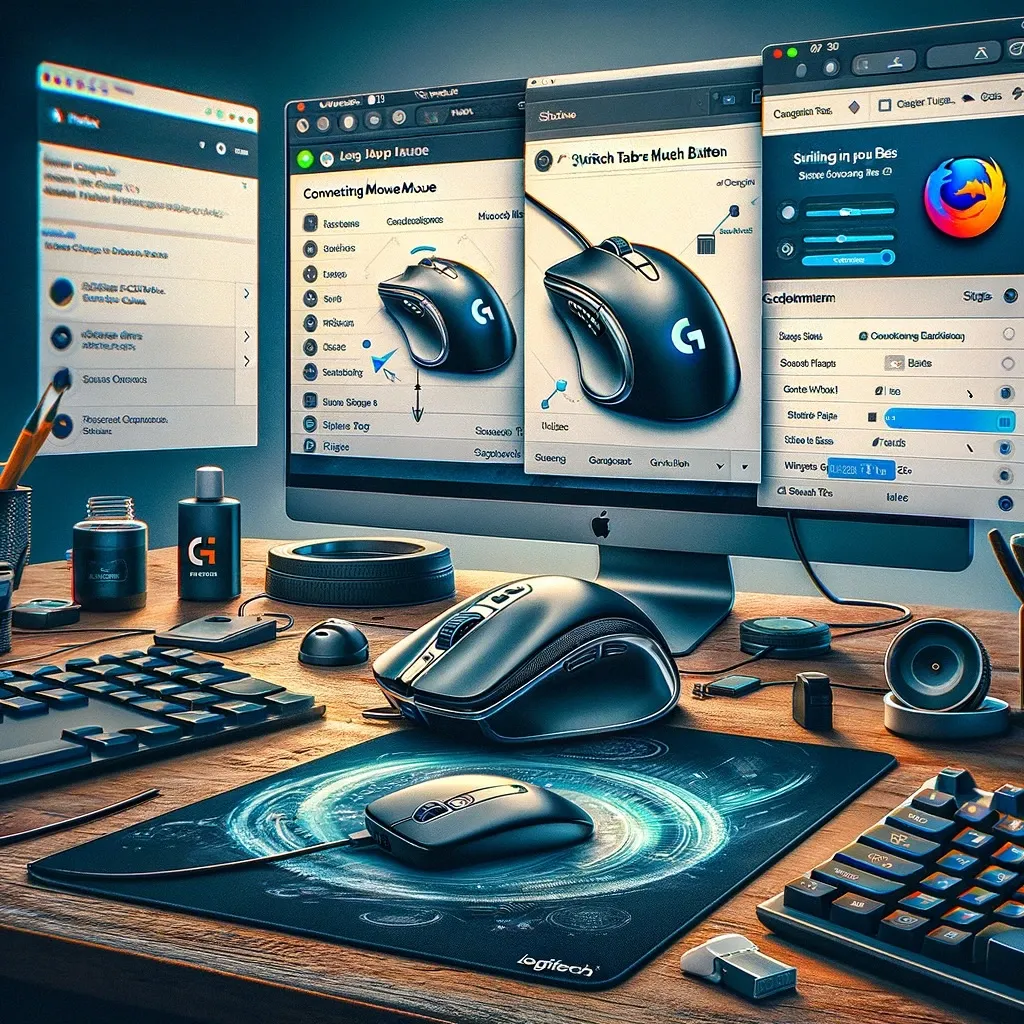
To set up a Logitech mouse, such as the MX Master 3, for switching tabs in Firefox using the Logitech Options software, follow these steps:
-
Install Logitech Options Software: Download and install the Logitech Options software from the Logitech website if you haven’t already. This software is necessary to customize the buttons on your Logitech mouse.
-
Connect Your Mouse: Ensure your Logitech mouse is connected to your computer, either via Bluetooth or using the USB receiver.
-
Open Logitech Options: Launch the Logitech Options software. Your connected mouse should be displayed on the screen.
-
Select Your Mouse: Click on your mouse to access its customization settings.
-
Choose the Button to Customize: Select the button you want to use for switching tabs. This could be one of the side buttons, the scroll wheel button, or any other programmable button on your mouse.
-
Assign the ‘Switch Tabs’ Function:
-
If there is a predefined ‘Switch Tabs’ function in Logitech Options, select it from the list of available actions.
-
If there isn’t a direct ‘Switch Tabs’ function, use keystroke assignments. The common shortcuts for switching tabs in Firefox are Ctrl + Tab to switch to the next tab and Ctrl + Shift + Tab to switch to the previous tab. Choose the ‘Keystroke Assignment’ option and input the desired shortcut.
-
-
Save Your Settings: After assigning the function or keystroke to the button, save your settings.
-
Test It in Firefox: Open Firefox and test the customized button to see if it switches tabs as intended.
Remember, the exact steps and options may vary slightly depending on the model of your Logitech mouse and the version of the Logitech Options software you are using. If you encounter any issues, it’s always a good idea to check for software updates or consult the user manual for your specific mouse model.